
Columns
Within the Columns layout you will need to select how many columns you want to display and what type of content to use within those columns. Some combinations of columns content are not recommended. Follow specific instructions and options below.
1 Column
For one column use only Text as the content type.
Text
- Choose background color or background image (and select or upload an image to the media library)
- Depending on the background color chosen, you may need to change the text color from “default” to “light”
- Enter optional header or include header in the text content wysiwyg.
- Add a column with the red button and select Text as the content type.
- Enter all your content, header, body text, button, etc. here.
2 Column
For two columns use a combination of Text/Image, Text/Video, or Text/Text content types only.
- Choose background color or background image (and select or upload an image to the media library)
- Do not use the optional header or header content. Headers should be added in the text column wysiwyg. (Possibly use the header here if you want a larger header centered above two columns of text.)
- Add a column with the red button and select desired content type for the left column. Then repeat for the right column.
- Text – Enter all your content, header, body text, button, etc. in the Text column. You may have two columns of text if needed.
- Image – Select (or upload new) image from the media library. Reference the Style Guide for the recommended size.
- Video – Enter the FULL url of the video from YouTube or Vimeo. (Do not use the shorted ‘share’ url.) It is strongly recommended that you use an image overlay with the video. Image size should match the recommendation for 2 column image.
3 Column Image
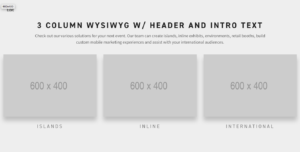
For three columns use only image content.
- Background recommendation for this block is white or grey.
- Enter optional header and header content.
- Add 3 columns with the red button and select image content type for each column.
- Image – Select (or upload new) image from the media library. Reference the Style Guide for the recommended size.
- Enter image caption text.
- Enter (optional) image link, if applicable. This will create a hover treatment on the image only.
3 Column Text
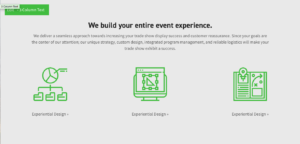
For three columns use only text content.
- Background recommendation for this block is white or grey.
- Enter optional header and header content.
- Add 3 columns with the red button and select image content type for each column.
- Text – Enter all your content, header, body text, button, etc. in the Text column. You may have two columns of text if needed.
- You can add images inline in the wysiwyg. Be sure that the images in each column are the same dimensions.
- If you want the entire column to link, select the page to link to. This will create a hover treatment around the entire column of content.
4 Column Image
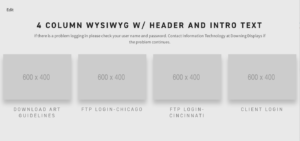
- Background recommendation for this block is white or grey.
- Enter optional header and header content.
- Add 4 columns with the red button and select image content type for each column.
- Image – Select (or upload new) image from the media library. Reference the Style Guide for the recommended size.
- Enter image caption text.
- Enter (optional) image link, if applicable. This will create a hover treatment on the image only.
Testimonial
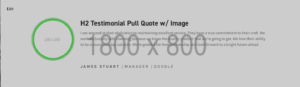
- Choose background color or background image (and select or upload an image to the media library)
- Depending on the background color chosen, you may need to change the text color from “default” to “light”
- Enter your testimonial into the wysiwyg. The optional, larger call out text is an h2.
- Enter text for First Name, Last Name, Title, Company. Not all of these are required, but you should include at least one attribute for the quote.
- Enter Photo (headshot or logo) image. This is not required but we do recommend them.
Blog Feed
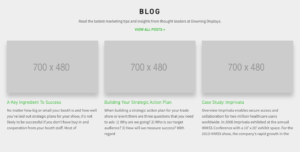
- Background recommendation for this block is white.
- Set text color to “Default.”
- Enter optional header and header content.
- Select desired blog posts to display.
Portfolio (Gallery Post Type) Feed
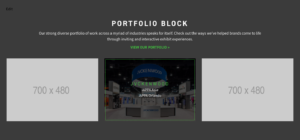
- Choose background color or background image (and select or upload an image to the media library)
- Depending on the background color chosen, you may need to change the text color from “default” to “light.”
- Enter optional header and header content.
- Select desired Galleries to display.
Gallery
- No background selection required.
- Enter optional header text related to galleries on display.
- Add ONE row using the red “Add Row” button to create the gallery.
- Then add multiple image areas using the red “Add Image”
- Within each image area, add the image, select the associated post type Gallery (optional), and add an optional caption.
Counter
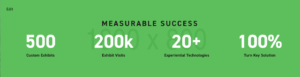
- Recommended background for this block is image, this will automatically add a green overlay. You can also create a green background by selecting image but NOT adding an image.
- Use the default text color.
- Enter optional header text related to the stats on display.
- Add three or four columns using the red “Add Row” button.
- Enter the needed fields for Prefix, Value, Suffix, Value Description.
Repeater
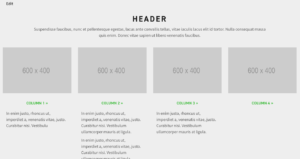
- Recommended background for this block is white or grey.
- Enter optional header and header content.
- Using the red “Add Rows” button add as many columns as you need. Each line will display 4 and then continue to the next line.
- Within each column enter, Title, Image, Internal Link, and wysiwyg content.
Locations
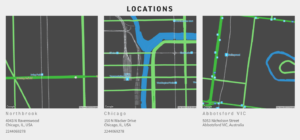
- Recommended background for this block is white.
- Enter optional header text.
- Enter number of columns needed by using the red Add Row button.
- For each row enter the required details for the address, (or city) to generate the google map.